

The free Windows utility that moves your ClearCare Desktop data into ClearCare+. Run it on your store PC and it takes care of the rest: it finds your database, uploads it securely, and sets up your account in the cloud.
Free for ClearCare dealers. Trouble installing? Follow the steps below.
Getting Set Up
Get the installer ZIP with the button above. Not at the store? Save it to a USB drive and bring it to your store PC.
Open the ZIP, run ClearCare Migration Tool 1.0.1.exe, and approve the Windows prompts. After Install and Finish, the tool opens on its own.
Click Get started on the welcome screen. The tool finds your ClearCare database automatically, no settings needed.
Check the data it found, then click Migrate to Cloud. The tool uploads everything, sets up your ClearCare+ account, and hands you your new login.
Click the blue button and the ZIP shows up in your browser, usually in a corner of the window. Click it to open.
Normal for a newly published app, nothing is wrong. Click More info. It looks the same on Windows 10 and 11.
Click it, approve the Windows prompt, then click Install and Finish. The tool opens on its own.
 ClearCare+ Cloud Migration & Sync Tool
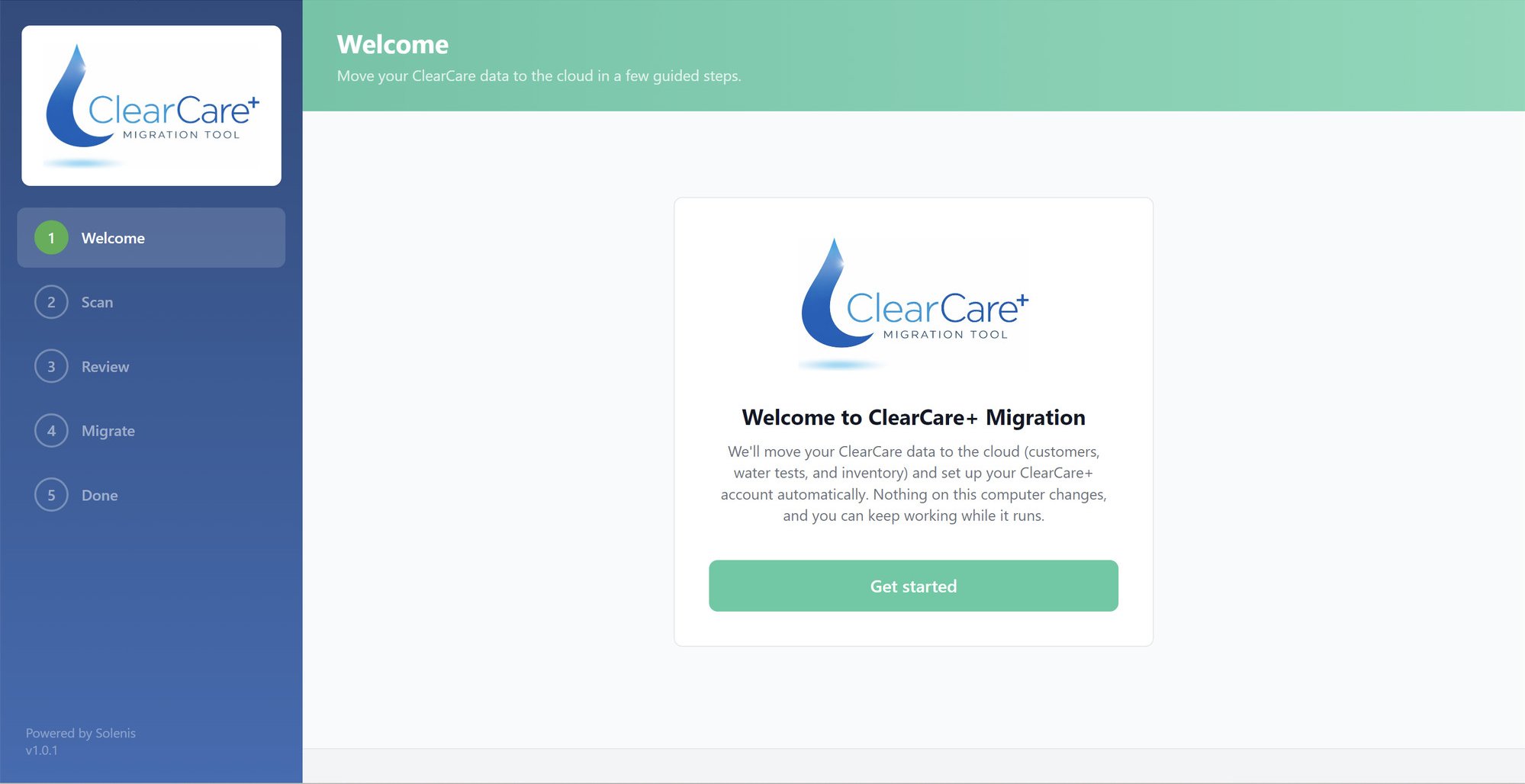
It opens on this welcome screen. Click Get started, check the data it finds, then click Migrate to Cloud. The tool handles the rest.
Good To Know
Version History
The tool reads and copies your data, it never changes it. Run your first migration, take a look around ClearCare+, and keep working in your desktop system for as long as you need. If a question comes up at any point, our onboarding team is one email away.
Already migrated? Log in to ClearCare+
Prefer the main site? Head back to the ClearCare+ overview.